 Maintivo

Switching trade software in an afternoon, not a project
Bring your clients across from a spreadsheet or another app’s export, set your logo and details once, and carry on from your old invoice numbers. Your first report is free, then 14 days free. And your data stays yours: download all of it in one go.


iPhone: No card. No account. First report free to fill in.In your browser: Free account, no card. First report free to fill in.
Import clients
customers.xlsx · 486 rows
Name, Email, Mobile, Address, Postcode
Names, phones, emails and postcodes
No name, or an email that looks wrong
Or choose Update existing or Add as new
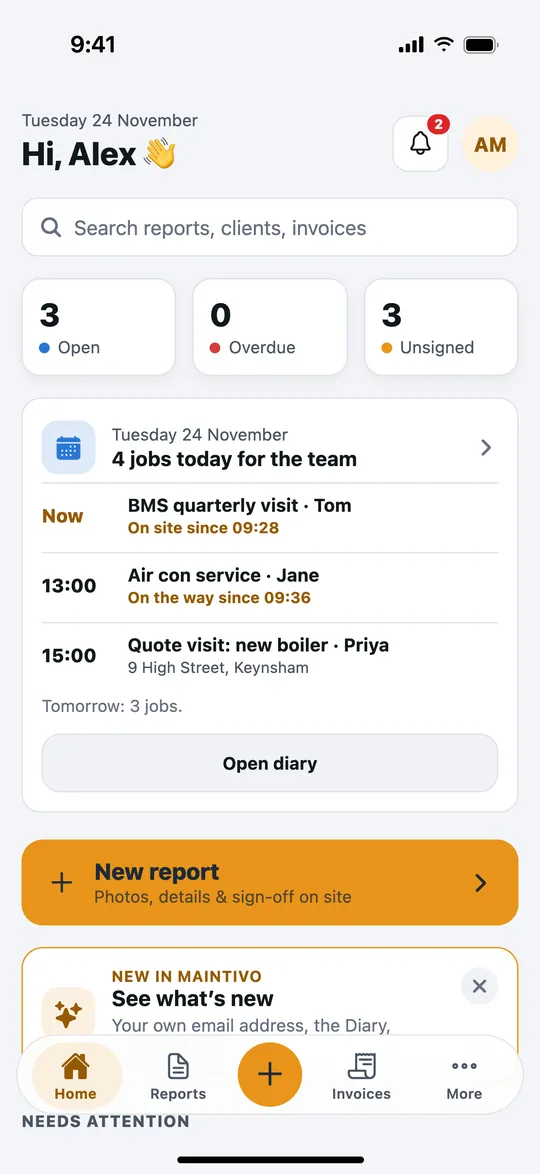
- Import your clients from Excel (.xlsx), CSV or rows pasted from a spreadsheet.
- Exports from Xero, QuickBooks, Commusoft or your own sheet work as they are.
- Set your logo, company details, Gas Safe and F-Gas numbers and bank details once.
- Carry on from your last invoice, quote and report number.
- Invite your team. Your first report is free, then 14 days free, with no contract.
- Leaving? Download all my data gives you everything in one ZIP file.
How do you switch to Maintivo?
Three jobs, each done once, on a computer or an iPhone. Then you get on with the work.
Bring your clients
Import them from a spreadsheet or another app’s export. Only the rows with a problem need a look.
Set up your company
Logo, details, registration numbers and bank details, plus your last invoice, quote and report numbers.
Invite the team and start
Invite people by email with their level, then do a real job. Your first report is free.
Switching, on the phone
Real screens from the iPhone app. Sample company and clients.
- 1
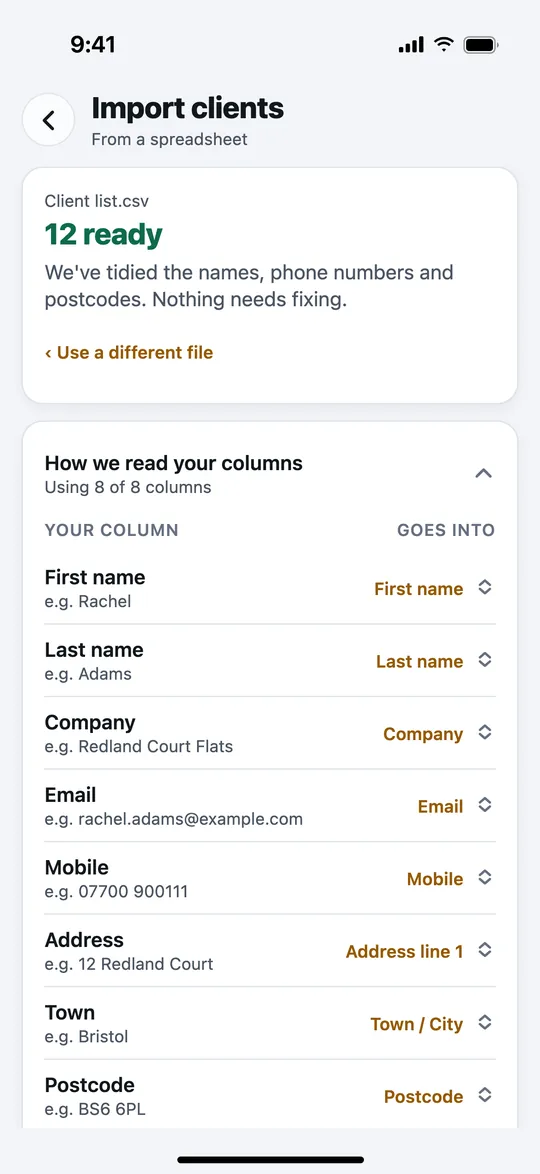
Import your clients
Your spreadsheet columns matched to Maintivo, ready to check.
- 2
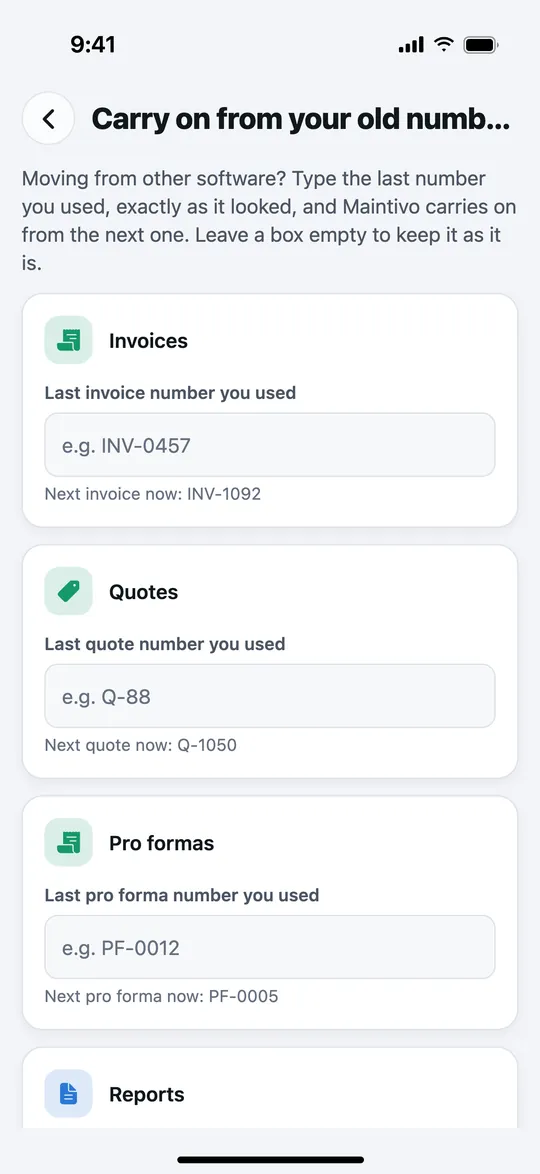
Keep your numbers
Carry on from your old invoice, quote and report numbers.
- 3
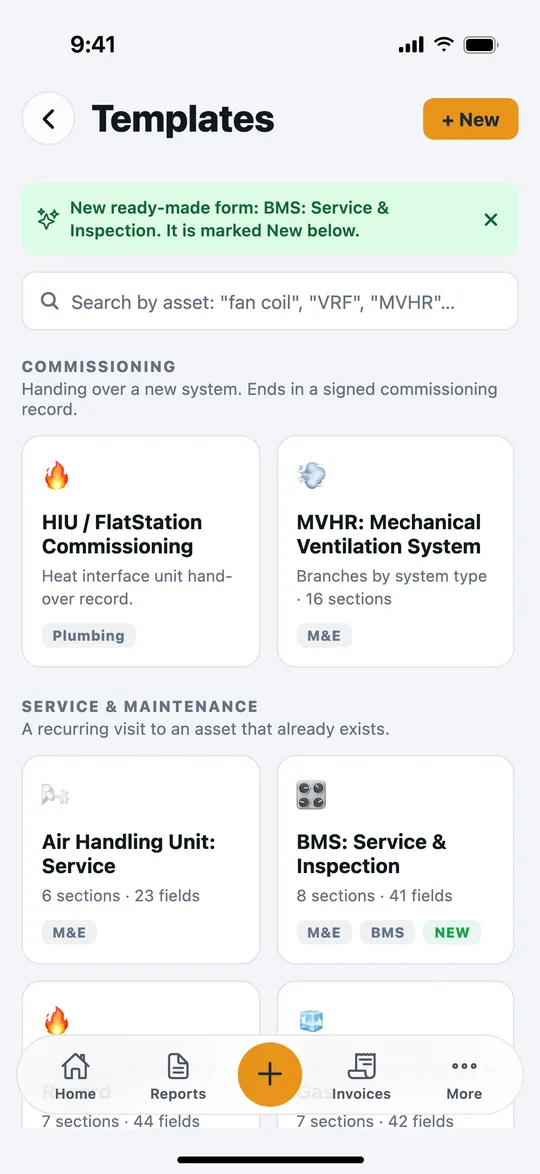
Forms ready to use
Ready-made forms for the trades, and your own.
- 4
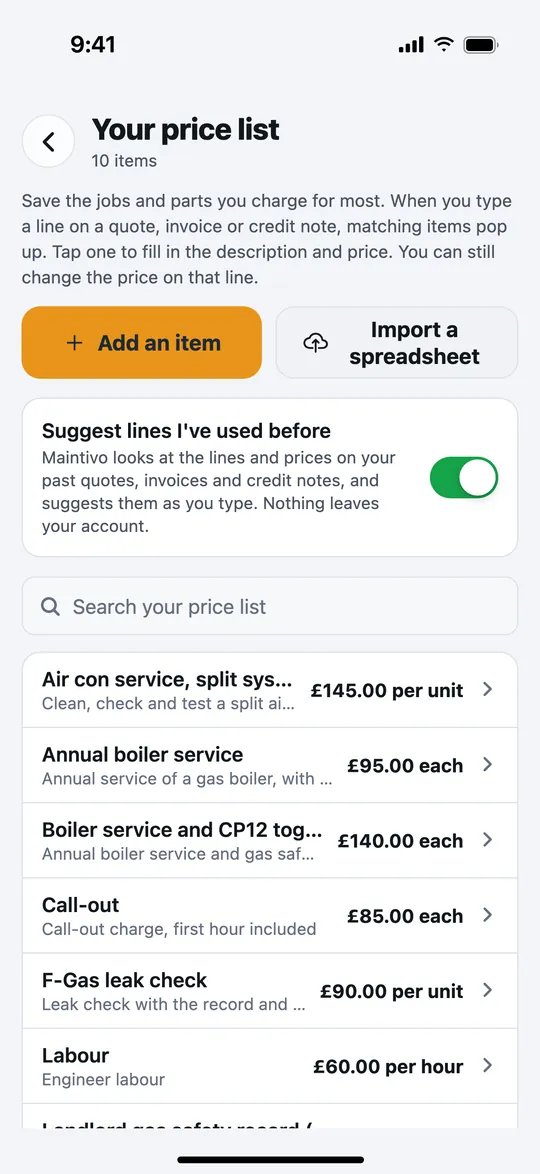
Your price list
Your usual jobs and parts, imported from a spreadsheet or added one by one.
How do I import my client list?
Open Clients and press Import from a spreadsheet on the iPhone, or Import clients in the web app. Upload an Excel (.xlsx) or CSV file, or paste rows straight from a spreadsheet.
Straight out of your old system
An export from Xero, QuickBooks, Commusoft or your own sheet works as it is. No tidying first.
Matched for you
Maintivo works out which column is the name, email, phone or postcode. Change any match you like.
Details cleaned up
Names, phone numbers, emails and postcodes are tidied as they come in.
Only the rows that need a look
Rows with a problem, such as no name or an email that looks wrong, are listed. The rest are ready to go.
Skipped unless you say
A client you already have is skipped, unless you choose Update existing or Add as new.
Undo for 24 hours
Changed your mind? Undo the import for 24 hours, on the same device.
- ✓Excel (.xlsx) and CSV filesUp to 5,000 rows and 15 MB a file.
- ✓Rows pasted from a spreadsheetCopy the rows from your sheet and paste them into the web app.
- ✕Old .xls filesSave them as .xlsx or CSV first.
- ✕Phone contactsImport works from a spreadsheet, not from the contacts on a phone.
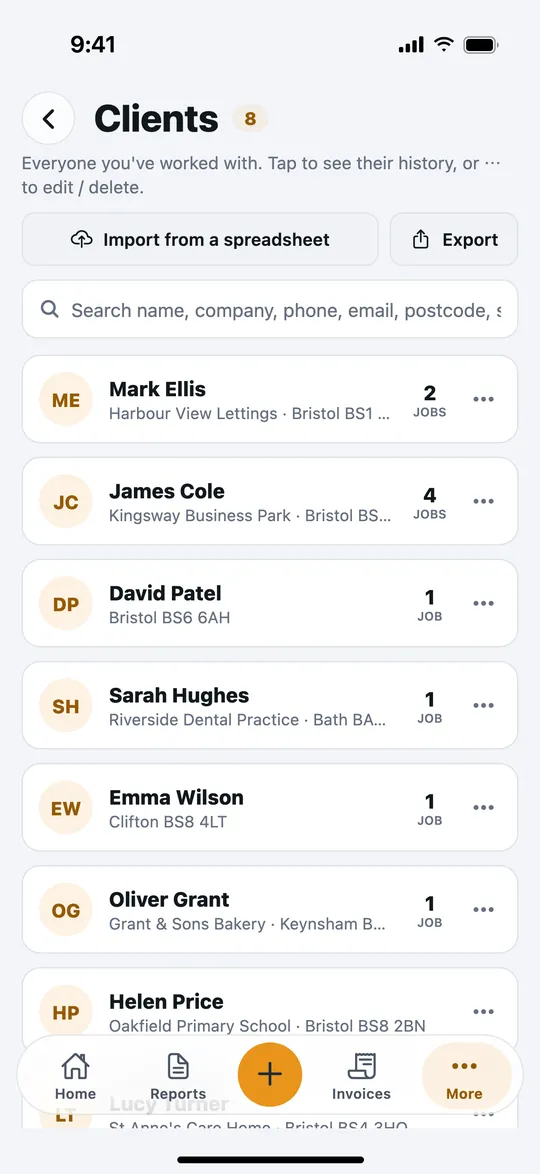
Your client list, with import and export at the top
- Import from a spreadsheetThe button sits at the top of Clients, next to Export.
- Search the lotFind a client by name, company, phone, email or postcode.
- Jobs at a glanceEach client shows their company, town and how many jobs you have done for them.
The owner, or anyone with Add and edit clients, can import. See team roles and permissions.
What if my clients are on paper?
You don’t need a list to start. Type a client into a report and they are saved to your clients for you.
Start working straight away
A client typed into a report is added to your clients, with Undo. If they look like someone you already have, Maintivo asks first.
Or type them up once
Put names, addresses and contact details in a spreadsheet, then import the lot in one go.
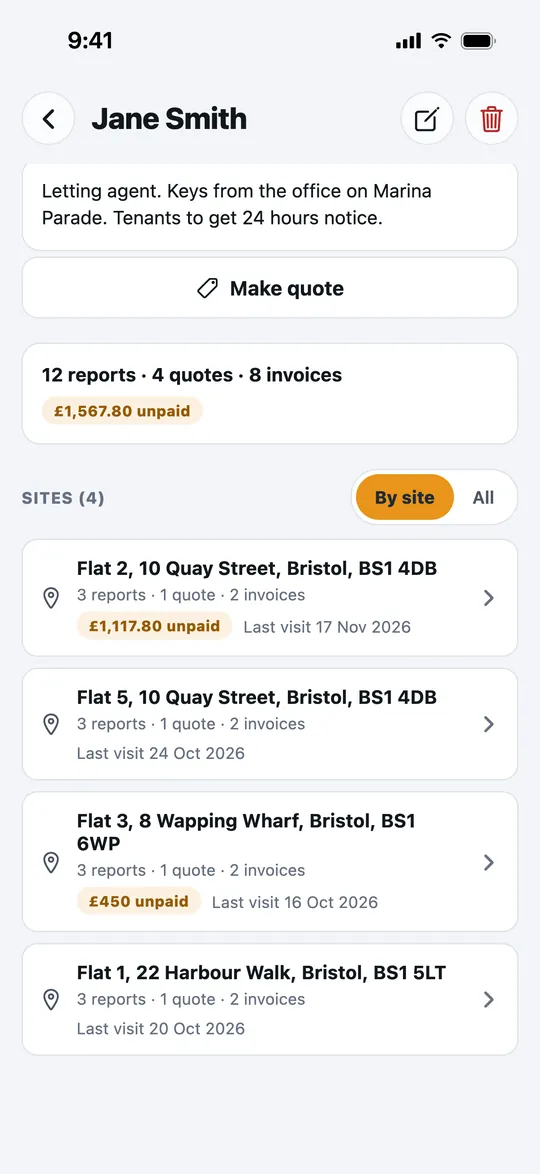
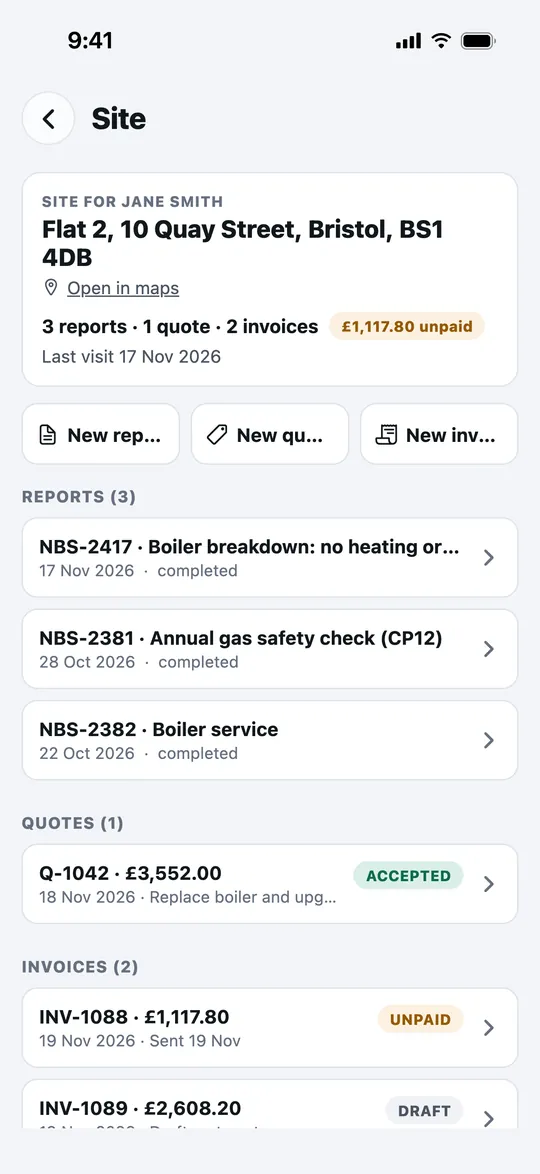
Each client keeps their sites and history
- A client with all their sitesEach site with its reports, quotes and invoices, what is unpaid and the last visit.
- One site, its whole historyEvery report with its number and date, then the quotes and invoices there.
Swapping paper job sheets for the phone? See the job sheet app and history by property.
What do I set up once?
Your logo, company details, registration numbers, bank details and quote terms. Set them once and each one goes on the right document every time.
| What you set | Details | Where it shows |
|---|---|---|
| Logo | PNG or JPEG, under 5 MB. A white background is removed for you. Pick small, medium or large. | Every report, quote, invoice and email |
| Company details | Name, address, phone, email, website, VAT number and company number. | Reports, quotes and invoices |
| Gas Safe and F-Gas numbers | Your company’s Gas Safe registration and F-Gas certificate numbers. Each engineer adds their own Gas Safe ID and F-Gas certificate. | Printed on reports |
| Bank details | Sort code and account number in the UK, or the format for your country. | Invoices |
| Quote terms | Paste your own, or start from the UK starter terms. | Every quote |
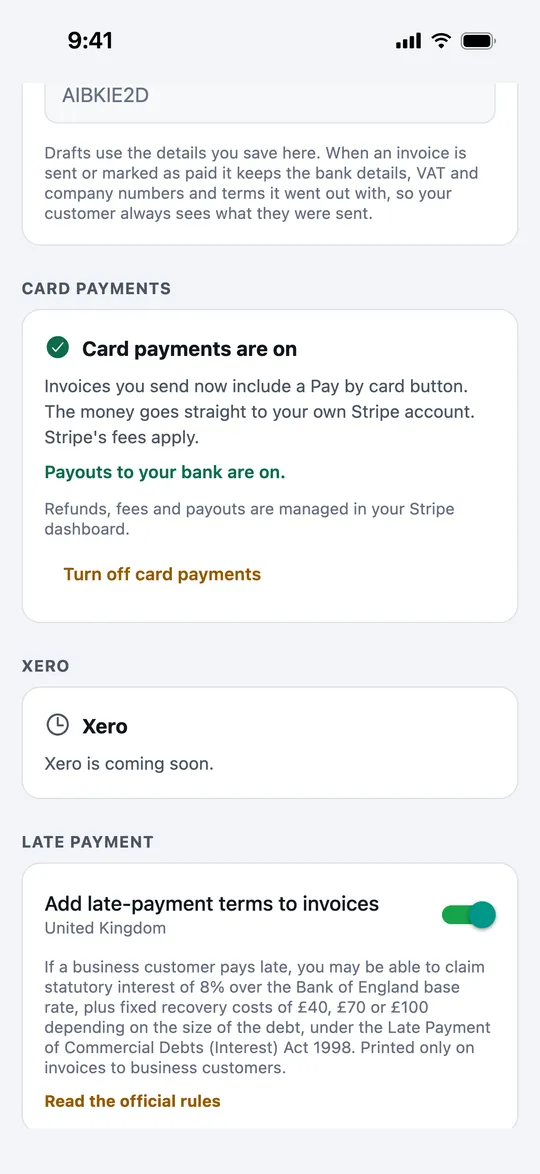
Bank details and card payments, set once
- Kept with each invoiceWhen an invoice is sent or marked as paid it keeps the bank details, VAT and company numbers it went out with.
- Card payments onInvoices include a Pay by card button, and the money goes straight to your own Stripe account.
Want customers to pay by card? Connect your own Stripe account: card payments on invoices.
Can I carry on from my old invoice numbers?
Yes. Type the last invoice, quote and report number you used, exactly as it looked, and Maintivo carries on from the next one in the same style.
| Document | Last one in your old system | Next one in Maintivo |
|---|---|---|
| Invoice | INV-0457 | INV-0458 |
| Quote | Q-88 | Q-89 |
| Report | JS-112 | JS-113 |
- ✓No gaps from mistakesDelete a draft that never went out and its number is given back to the next one.
- ✓Sent invoices keep their numberTo cancel or reduce one, raise a credit note against it.
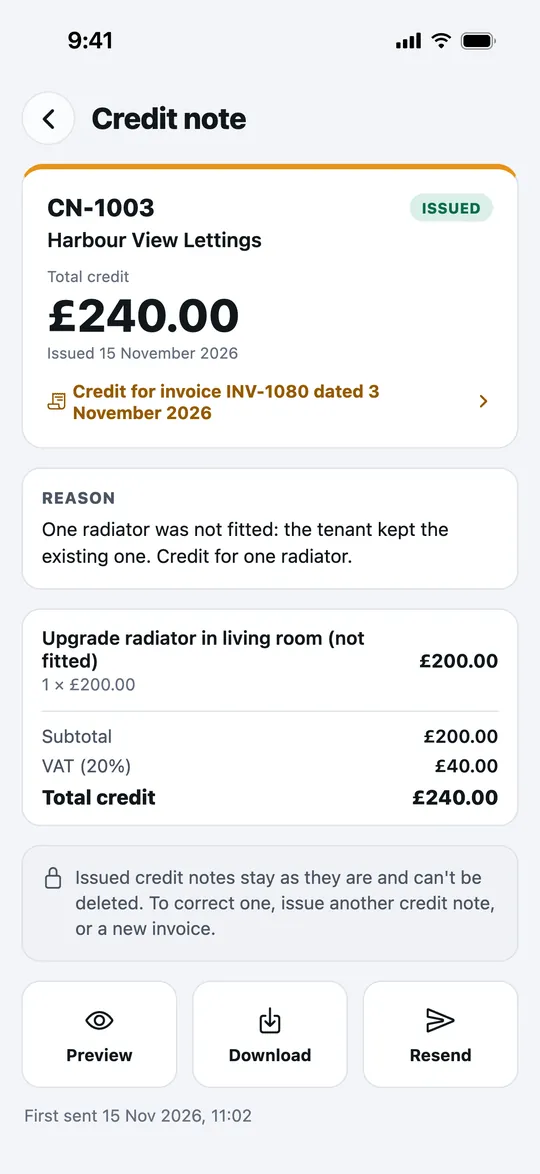
Corrections go on a credit note
- Linked to the invoiceThe credit note shows the invoice it corrects.
- With a reasonThe reason and the lines credited are on it.
More on invoice numbering and invoicing in Maintivo.
When do I bring the team in?
Once your clients and details are in. Invite each person by email and choose their level: Engineer, Supervisor or Manager.
Your engineers
Pay nothing, sign in on their own phone or in the browser, and see their own jobs and reports. They never see your prices unless you tick it.
Your plan
Solo is for 1 person, Team for up to 3 and Team 10 for up to 10, owner included. Your accountant’s login is free.
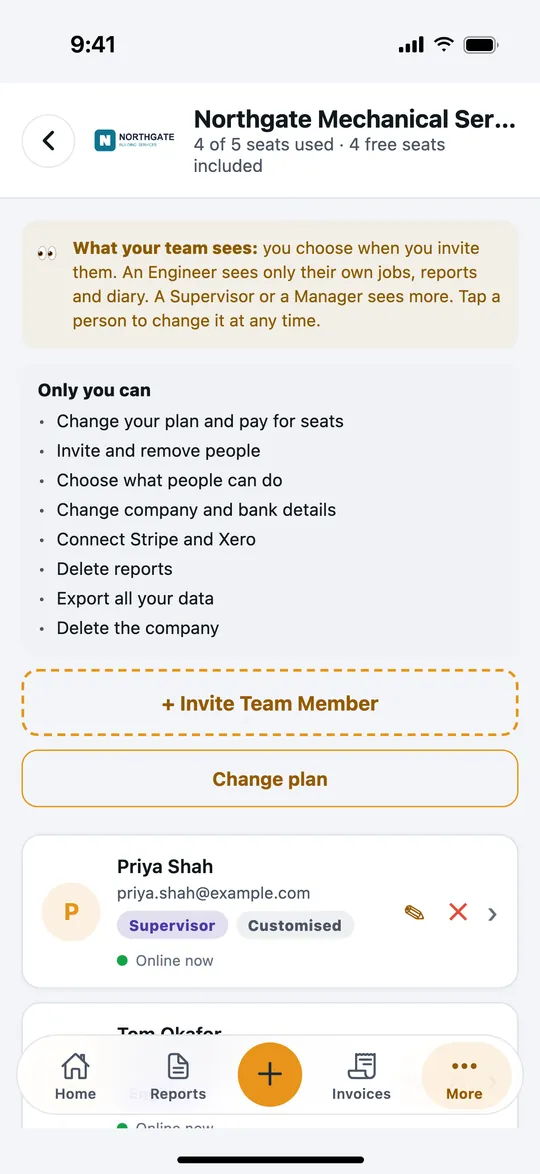
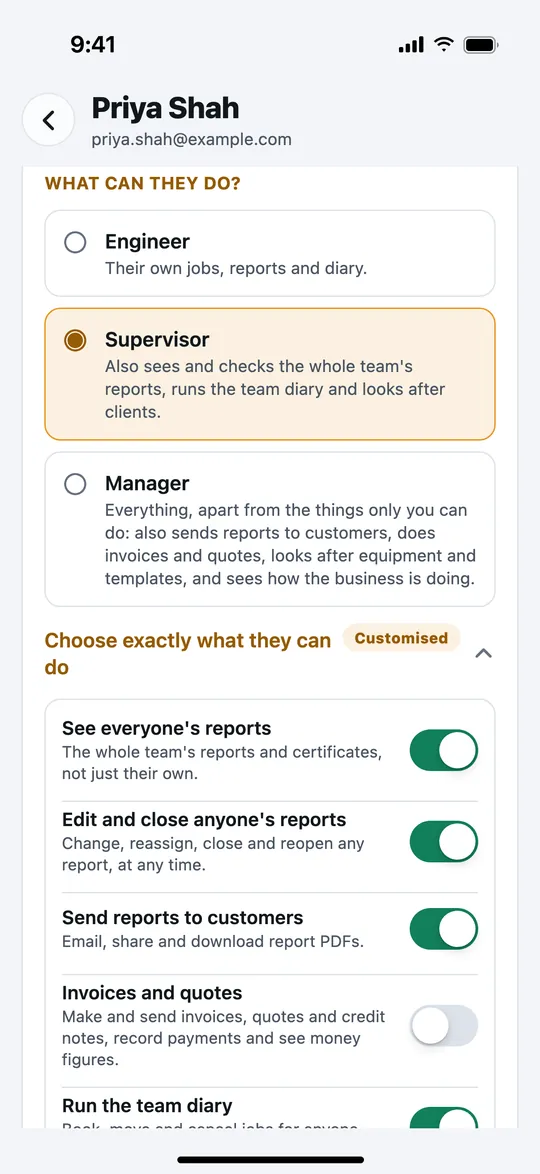
Invite each person, then choose their level
- Seats at a glanceThe Team screen shows how many seats are used and who has which level.
- Engineer, Supervisor or ManagerAn Engineer sees their own jobs, reports and diary. A Supervisor or Manager sees more.
- A tick for each permissionInvoices and quotes is its own switch, so prices stay hidden unless you turn it on.
See team roles and permissions, the team Diary and Maintivo on Android.
What does it cost to switch?
Nothing to start. Your first real report is free, then every plan starts with 14 days free, with everything included.
First report free
Fill in a real report on a real job. No card needed to start.
Then 14 days free
Everything included, invoicing too. Nothing is charged until the trial ends.
From £34.99 a month
Solo £34.99, Team £59.99 or Team 10 £99.99 a month. No contract and no exit fee.
See pricing and everything Maintivo does.
Can I take my data with me if I leave?
Yes. The owner can download everything in one ZIP file, and export the client list as a spreadsheet.
Download all my data
In the web app settings: one ZIP of report PDFs, original photos and signatures, invoice PDFs, and spreadsheets of reports, clients, sites, equipment, invoices and team. Pick the dates.
Export clients
On the iPhone, Clients then Export gives a spreadsheet (CSV) that opens in Excel, Numbers and Google Sheets.
- ✓Download before your plan endsReport PDFs in the download need an active plan.
- ✓Keep the page openThe download is made in your browser, so leave the page open until it finishes.
- ✓Check how long to keep recordsGas safety records are normally kept for at least 2 years, and F-Gas records for at least 5.
- ✓No exit feeCancel any time. To close your account, cancel the subscription first, then delete the account in Settings.
Common questions
Yes. Export your client list from them as an Excel (.xlsx) or CSV file and import it as it is. Maintivo matches the columns and tidies the details. This is a file import: a Xero connection is coming soon.
Type them into a spreadsheet and import it, or just start working: a client you type into a report is saved to your clients for you, with Undo.
They are skipped, unless you choose Update existing or Add as new. You can also undo the whole import for 24 hours, on the same device.
Up to 5,000 rows and 15 MB a file, in Excel (.xlsx) or CSV. Old .xls files are not accepted, so save them as .xlsx or CSV first.
Yes. Type the last invoice, quote and report number you used, exactly as it looked, and Maintivo carries on from the next one in the same style.
The owner uses Download all my data in the web app: one ZIP file of report PDFs, photos, signatures, invoice PDFs and spreadsheets. Report PDFs need an active plan, so download before it ends.
No. Pay monthly or yearly and cancel any time, with no exit fee. Every plan starts with 14 days free.
Do your next report in Maintivo
Your first report is free to fill in, with no card and no training day. Run a real visit through it and see.
iPhone: No card. No account. First report free to fill in.In your browser: Free account, no card. First report free to fill in.